Troubleshooting
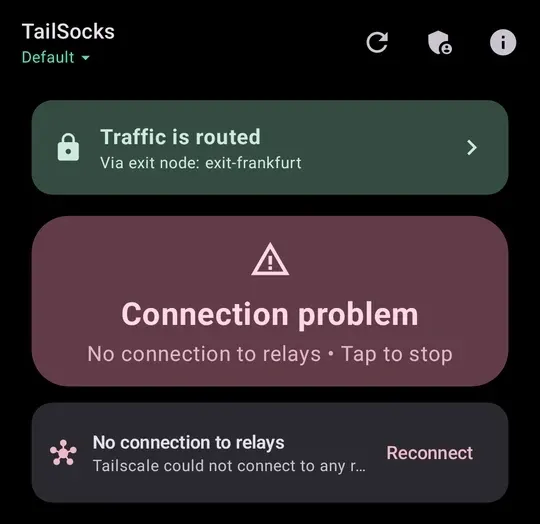
The main screen names what is wrong and offers the one action that helps — Reconnect for the relays, Bypass when the coordination server is out of reach.
Connecting forever
Section titled “Connecting forever”The card stays on Connecting — Waiting for the tailnet map, or the device signs in but never shows its peers.
Usually the network drops the control connection on port 80. Check that Port 443 only is on (Settings → Censorship bypass; the default since 4.10.1). If the server is blocked outright, see Blocked networks.
Large transfers hang
Section titled “Large transfers hang”Small requests work, big ones over a direct connection never finish; through a relay everything is fine. That is a small MTU on the network.
Network check warns about it: This network’s MTU is … Direct connections need 1340 (IPv4) or 1360 (IPv6). The cause is the network or the host — another VPN on the same computer, a virtual machine’s adapter. Windows Subsystem for Android, for one, inherits 1280 from the host’s VPN adapters. Raise that interface’s MTU to 1500; the app cannot.
The connection dies in the background
Section titled “The connection dies in the background”Settings → Background & permissions:
- Permissions — the optional permissions; let the app ignore battery optimisation.
- Revive service in background — on by default. Checks every 15 minutes and starts the service again. Allow Alarms & reminders when asked, and the autostart permission on skins that block background starts.
- Auto-reconnect — off by default. Restarts the daemon when the connection does not come up or drops; Restart attempts (0 = unlimited) caps it, 3 by default. Waiting for you to sign in does not count.
- Keep the connection awake — off by default. Holds a wake lock for the whole session, so the connection survives deep sleep. Costs battery.
- Auto-start on Boot — off by default. Starts the app after a reboot, if it was running before. Keep the connection awake does that too.
A manual Stop is final: nothing above brings the service back until you start it. Swiping the app away from Recents keeps the connection.
A device only through a relay
Section titled “A device only through a relay”Peers shows how each device is reached now: directly, through a peer relay, or Via DERP relay with the city. A relay still works, end-to-end encrypted, only slower. Tailscale keeps looking for a direct path and switches as soon as one works.
- Network check shows whether UDP works here (UDP STUN Support) and whether the NAT is hard (NAT Mapping Varies). Without UDP, every connection goes through a relay.
- A peer relay — one of your own devices — is usually much faster than DERP. Act as a peer relay (Settings → Account & connection) makes this phone one, where the tailnet policy allows it.
- Large transfers hang while small ones pass? See the MTU above.
Taildrive lists nothing
Section titled “Taildrive lists nothing”The tailnet policy has to allow it. The Taildrive screen says what the server allows this device; the policy that makes it work is on Files.
Logs and the diagnostics report
Section titled “Logs and the diagnostics report”- Logs (main screen): the app’s log and the daemon’s (TAILSCALE), and ROOT in Root Mode. Save exports the whole log. Detailed Logs (Settings → Diagnostics & developer) stops filtering it.
- Live state (Settings → Diagnostics & developer): what the daemon, the proxies and the tunnel are doing now. Copy live state takes it for a bug report.
- Report a problem (in About & Licenses, the ⓘ in the main screen’s top bar): a diagnostics report with no node names, addresses, keys or account names. Read it, then copy it, share it, or open a new issue with it.
Open an issue on GitHub.